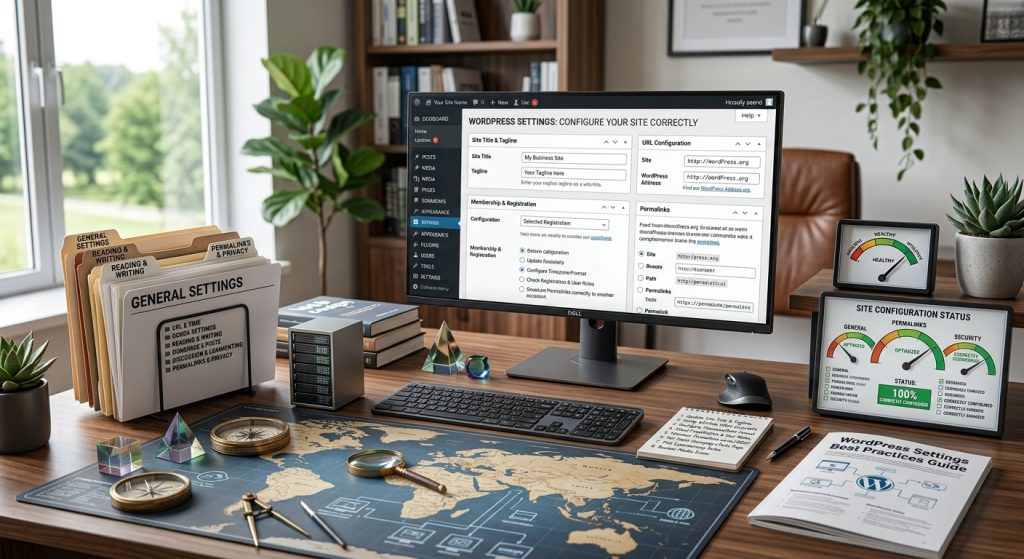
WordPress installs with default settings that work for most sites but are not necessarily right for yours. The default permalink structure. The default comment settings. The default reading options. Each of these defaults reflects an average use case. Your site is not average.
Taking time to review and configure the settings properly at the start saves problems later. Some settings become harder to change once your site has content. Some settings affect SEO, user experience, or security in ways that matter.
This piece covers every settings section in WordPress. What each setting does. What the recommended values are. When you would deviate from the recommendations.
The Settings Menu
WordPress settings are organized into sections.
Where to Find Them
All settings live under Settings in the main admin sidebar. The default sections are General, Writing, Reading, Discussion, Media, Permalinks, and Privacy.
Plugins often add their own settings sections. These appear either under Settings or in their own top-level menus.
When to Configure
Ideally, configure settings before adding content. Some settings become harder to change after content exists.
If you are working on an existing site, review settings periodically. Requirements change. Default values may not fit anymore.
General Settings
Site-wide basics.
Site Title
The name of your site. Appears in browser tabs, some themes display it prominently, and search engines use it. Should match your brand.
Tagline
A brief description of your site. Some themes display it. Search engines sometimes use it. Change from the default “Just another WordPress site” to something meaningful.
WordPress Address (URL) & Site Address (URL)
These control your site’s URLs. In most cases both should be the same. Include https:// if your site uses SSL. Include or exclude www consistently based on your preference.
Changing these settings incorrectly can lock you out of your site. Be careful.
Administration Email Address
Where WordPress sends important administrative notifications. Use an email address you actually check.
Membership
Whether visitors can register as users. For most sites, leave this off. Turning it on invites spam registrations.
New User Default Role
If you allow registration, what role new users get. Subscriber is the safe default.
Site Language
The language for the admin interface. Set to whatever language you use.
Timezone
Set to your local timezone. This affects when scheduled posts publish and how dates display.
Date Format & Time Format
How dates and times appear on your site. Pick formats appropriate for your audience.
Week Starts On
Some parts of WordPress use weekly views. Set the starting day appropriately.
Writing Settings
Options for content creation.
Default Post Category
When you write a post without assigning a category, this category gets used. Create a category like “General” or “Uncategorized” for this.
Default Post Format
Post formats provide different presentations for different types of content. Most sites use “Standard.” Some themes make use of other formats.
Post via Email
Old feature for creating posts by sending emails. Rarely used. Modern sites can leave this disabled.
Update Services
WordPress can ping services to notify them of new content. The default lists a few. You can add more if you know they help. For most sites, the defaults are fine.
Reading Settings
Controls what visitors see.
Your Homepage Displays
Choose whether the home page shows your latest posts or a static page. For business sites, a static page usually makes sense. For blogs, latest posts works.
Homepage & Posts Page
If you chose static page, select which page is the homepage and which page shows posts.
Blog Pages Show at Most
How many posts appear per page on blog listings. 10 is the default. Adjust based on how much content you show and how long the individual posts are.
Syndication Feeds Show the Most Recent
How many posts appear in RSS feeds. Similar to blog page settings but for RSS.
For Each Post in a Feed, Include
Full text or summary in RSS feeds. Full text gives readers everything without visiting your site. Summary requires them to click through to read.
Business sites often prefer summary to drive traffic. Blogs sometimes prefer full text for reader convenience.
Search Engine Visibility
If checked, WordPress adds a noindex meta tag and blocks search engines through robots.txt. Use this only for development sites or during major overhauls. Never on a production site you want indexed.
Discussion Settings
Comment behavior and notifications.
Default Article Settings
Whether new posts allow comments, trackbacks, and pingbacks. For business sites without much comment activity, disabling all of these keeps things simple. For blogs where discussion matters, enable at least comments.
Other Comment Settings
Comment name and email requirements. Comment threading depth. Sorting order. Pagination.
The right settings depend on how you want comments to work. For most sites, requiring name and email, threading enabled with reasonable depth, and no pagination works.
Email Me Whenever
When to notify you about comments. New comments waiting for moderation should trigger notifications. Approved comments usually do not need notifications on active sites.
Before a Comment Appears
Whether comments require moderation before appearing. For sites with any spam concerns, requiring moderation is safer.
Comment Moderation & Blocked Words
Rules for what happens to comments containing specific words. Useful for spam control.
Avatars
Whether to show avatars next to comments. Gravatar shows avatars users have set up.
Media Settings
How WordPress handles images.
Image Sizes
WordPress creates multiple sizes of each uploaded image. Thumbnail, medium, and large. You can configure the dimensions.
For most sites, the defaults are fine. Themes may register additional sizes.
Uploading Files
Organize uploads into month and year based folders. This is on by default and usually should stay on. It keeps the media library manageable.
Permalinks
The URL structure for your content. This is one of the most important settings.
Common Settings
WordPress offers several permalink structures:
Plain uses URLs like yoursite.com/?p=123. Bad for SEO. Do not use.
Day and name includes the date and post name. Long URLs. Locks you into showing dates.
Month and name similar but with just month and year.
Numeric uses just post ID.
Post name uses just the post title. Recommended for most sites.
Custom structure lets you build your own pattern.
Recommendation
For most sites, “Post name” is the right choice. Clean URLs. Good for SEO. Not tied to dates.
Once Set, Do Not Change
Changing permalink structure after publishing content breaks all your URLs. Set the structure correctly at the start and leave it alone.
Category Base & Tag Base
The URL prefix for category and tag archives. Defaults are “category” and “tag.” You can customize but usually should leave alone.
Privacy
Privacy policy management for regulatory compliance.
Privacy Policy Page
Select which page is your privacy policy. WordPress can help generate a starter privacy policy that you customize.
Why It Matters
GDPR, CCPA, and similar regulations require privacy policies. Having one and marking it clearly is required for many sites.
Settings Beyond the Standard
Plugins add many settings. A few that matter frequently.
SEO Plugin Settings
Yoast SEO, Rank Math, and similar plugins add extensive settings. Meta titles, meta descriptions, XML sitemaps, schema markup. Configure these carefully.
Security Plugin Settings
Security plugins add settings for firewall behavior, malware scanning, login protection, and more. Review and configure based on your needs.
Caching Plugin Settings
Caching plugins have significant configuration. Cache lifetimes, cache exclusions, browser caching, minification. Get these right for good performance.
Analytics Plugin Settings
If you use a plugin to integrate Google Analytics or similar, configure it to track what you actually want to measure.
E-Commerce Plugin Settings
WooCommerce and other e-commerce plugins have extensive settings. Payment methods, shipping options, tax configuration, checkout behavior, email notifications.
E-commerce settings deserve careful attention because they directly affect revenue.
User Settings
Beyond the main settings sections, users have their own settings.
Personal Options
Under your profile, you can set the admin color scheme, keyboard shortcuts, toolbar preferences, and language for your interface.
Name Settings
Nickname, display name, first name, last name. These affect how your name appears in various places.
Contact Info
Website URL, email address. Some themes display these.
About Yourself
Biographical info that some themes display. Profile picture uses Gravatar.
Account Management
Password, sessions, application passwords.
Common Settings Mistakes
Users stumble in predictable ways.
Not Setting Timezone
Leaves scheduled posts publishing at wrong times. Set your timezone correctly.
Wrong Permalink Structure
Leaves the plain default. Or picks a bad structure and changes it later. Set post name from the start.
Search Engine Visibility Blocked
Sometimes users check the “discourage search engines” box during development and forget to uncheck it when the site goes live. Check that search engines can actually index your site.
No Privacy Policy
Required for regulatory compliance. Set up a proper one.
Comment Chaos
Comments open with no moderation. Spam floods in. Set up moderation.
Wrong Email Address
Administrative emails going to an address nobody checks. Use an email you actually monitor.
Not Configuring SEO Plugin
SEO plugin defaults are decent but not optimal. Configure the plugin for your specific needs.
Reviewing Settings Periodically
Settings need occasional review.
After Major Changes
If you change themes, add significant plugins, or restructure the site, review settings that might be affected.
Annually
An annual settings review catches drift. Some settings that made sense a year ago might not fit anymore.
After Regulatory Changes
Privacy regulations change. Comment settings, data handling settings, and privacy policies need updating when relevant regulations change.
When Adding Features
New features often need new settings. E-commerce, membership functionality, forum, courses. Each brings its own settings that need configuration.
The Settings Documentation
WordPress documentation covers all settings in detail.
WordPress.org Documentation
The official documentation at wordpress.org/documentation covers every setting. When you are unsure what a setting does, check the docs.
Plugin Documentation
Each plugin should have documentation for its settings. Refer to it when configuring plugins.
Theme Documentation
Themes with extensive customization options usually have documentation explaining them.
Bringing the Configuration Picture Together
WordPress settings are one of those things that most users configure once and forget about. Getting them right at the start prevents problems later. Getting them wrong creates ongoing friction.
For most sites, the right approach is to review each settings section during initial setup. Set values that match your needs. Save the settings. Then move on to building the site.
The default values are decent starting points but rarely optimal for specific situations. The time spent adjusting settings to fit your needs pays back through better site behavior throughout its life.
For existing sites that have not had settings reviewed, taking time to review them is worthwhile. Some settings that seemed right at the start may not fit anymore. Some settings may have been left at defaults that never really fit.
The Settings menu items are ordered somewhat logically. General settings first because they affect everything. Then writing, reading, and discussion which affect specific content areas. Then media and permalinks for how content is stored and accessed. Then privacy for compliance.
Working through the sections systematically ensures nothing gets overlooked. The initial pass takes an hour or two. The benefits last for the life of the site.
Sites with properly configured settings work the way their owners want. Sites with default or wrong settings work in ways that create ongoing frustration. The choice between these two experiences comes down to whether you take the time to configure settings properly. The investment is small. The impact is real. Take the time to get settings right, and the ongoing operation of your site becomes much smoother.