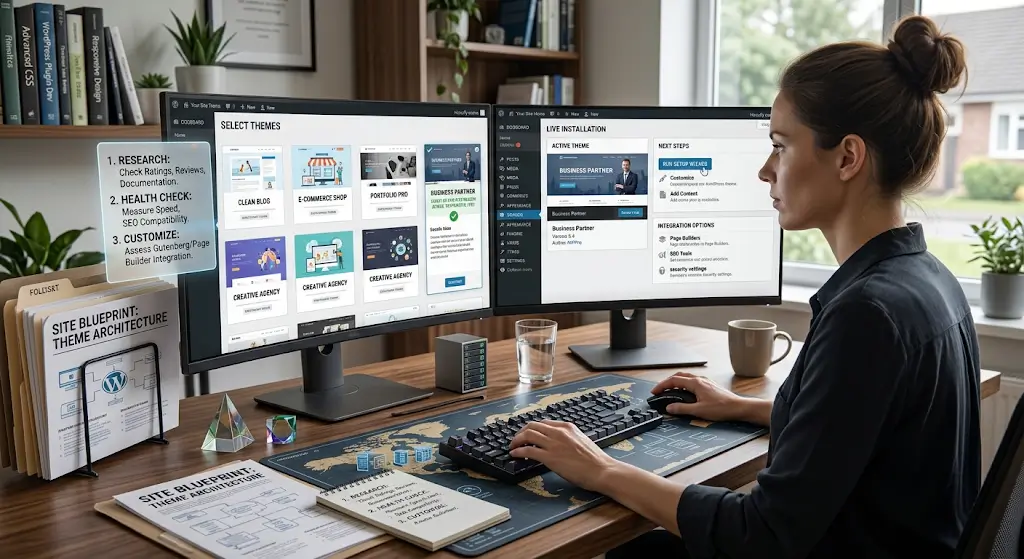
Your WordPress theme controls how your site looks and, to some extent, how it works. The right theme makes your site look professional and function well. The wrong theme creates ongoing friction that affects both visitors and the people managing the site.
Choosing a theme is easy to do badly. Themes with attractive demos often turn out to be difficult to customize or unreliable to maintain. Themes that seem simple might not do what you need. The temptation to pick based purely on visual appeal leads to mistakes that affect the site for years.
This piece covers how to think about theme selection, what to look for in a good theme, and how to install and set up the theme you choose.
What Themes Do
Themes affect your site in several ways.
Visual Appearance
The most obvious. Colors, fonts, layouts, spacing, imagery. Every visual aspect of your site.
Layout Structure
Where the logo goes, where the navigation appears, whether there are sidebars, how the footer looks. Themes define the overall structure of pages.
Available Content Areas
Themes define widget areas, custom fields, and other places where content can go. Different themes offer different areas.
Site Behavior
Some themes affect how the site works, not just how it looks. Custom post types, custom taxonomies, specific functionality built into the theme.
Performance
Themes affect page load times. Lightweight themes load fast. Heavy themes with many features and complex code load slowly.
Types of WordPress Themes
The market has several categories.
Free Themes
Themes in the WordPress theme directory are free. Quality varies enormously. Some are excellent. Some are terrible. Most are decent starting points.
Popular free themes include Astra, GeneratePress, OceanWP, Neve, and Kadence.
Premium Themes
Themes you pay for. Prices range from $30 to $100 typically. Premium themes usually have more features, better support, and more polished designs than free ones.
Popular premium themes include Divi, Avada, Astra Pro, Kadence Pro, and various themes from ThemeForest.
Custom Themes
Themes built specifically for your site. Most expensive but most tailored. For sites with specific needs and budgets, custom themes make sense.
Multipurpose Themes
Themes designed to work for many kinds of sites. Divi and Avada are examples. Highly flexible but often heavy.
Niche Themes
Themes designed for specific purposes. Restaurant themes, portfolio themes, e-commerce themes, real estate themes. More focused but less flexible.
Block Themes
Newer type of theme designed for the Block Editor and Full Site Editing. Themes like Twenty Twenty-Four are block themes.
What to Look For in a Theme
Several factors matter beyond appearance.
Active Development
Themes that are being actively updated are safer long-term than themes that have been abandoned. Check when the theme was last updated. Regular updates within the past few months is a good sign.
Good Reviews
Read reviews from actual users. Look for patterns. If multiple reviewers mention specific issues, those issues are probably real.
Reasonable Code Quality
You cannot always tell code quality without looking at the code, but you can look at signs. Fast loading. Good performance scores. No unnecessary features. These suggest better code.
Compatibility With Popular Plugins
Themes should work well with common plugins. WooCommerce, Yoast SEO, popular page builders. Compatibility issues create ongoing headaches.
Responsive Design
The theme must look good on mobile devices. Mobile traffic is significant for most sites.
Speed Optimization
Themes that are fast make your site fast. Themes that are slow make your site slow. Check reviews for performance information.
SEO Friendliness
Good themes follow SEO best practices. Proper heading structure. Schema markup where relevant. Clean HTML. Fast loading.
Documentation
Well-documented themes are easier to work with. Check what documentation exists before committing.
Support
Premium themes should have real support. Check what support is offered and how responsive it is.
Customization Options
Look at what you can customize without touching code. Colors, fonts, layouts, header options. More options mean more flexibility but sometimes more complexity.
Common Theme Mistakes
Users stumble in predictable ways.
Choosing on Demo Alone
The demo shows what the theme can do at its best. Your site will not look like the demo unless you have the same content, the same images, and the same customization. The demo is aspirational, not what you will get out of the box.
Picking a Theme Too Heavy for Your Needs
Multipurpose themes with hundreds of features are impressive but often overkill. Every unused feature adds weight without adding value. Simple themes are often better for simple sites.
Ignoring Speed
Some visually impressive themes are slow. Slow themes hurt SEO, conversions, and user experience. Speed matters more than most visual features.
Not Considering Long-Term Support
Themes that are abandoned by their developers become liabilities. Check the developer’s track record and support commitments.
Choosing Nulled Themes
Nulled themes are premium themes offered free through unofficial channels. They often contain malware. The savings are not worth the security risk.
Sticking With a Bad Theme
If a theme is not working well, changing themes is disruptive but sometimes necessary. Staying with a theme that does not fit creates ongoing problems.
Heavy Customization on a Bad Theme Foundation
Heavy customization of a theme locks you into that theme. Picking the wrong theme and then customizing extensively traps you with the wrong theme.
Popular Theme Options
Several themes come up consistently in recommendations.
Astra
Fast, flexible, well-supported. Free and Pro versions. Works with most page builders. Good for many kinds of sites.
GeneratePress
Similar to Astra. Fast and lightweight. Free and Premium versions. Focused on performance.
Kadence
Newer theme with strong features. Fast and flexible. Free and Pro versions.
OceanWP
Similar approach. Fast, flexible, many customization options. Free with premium add-ons.
Divi
Popular multipurpose theme from Elegant Themes. Comes with the Divi Builder. Very flexible but heavier than others.
Avada
Long-running popular theme from ThemeForest. Fusion Builder included. Very flexible, some concerns about weight.
Twenty Twenty-Four
The default WordPress theme. Well-supported since it comes from WordPress itself. Block-based design.
Neve
Fast and lightweight. Free and Pro versions.
How to Install a Theme
The process is straightforward.
From the WordPress Directory
For free themes in the WordPress directory:
Go to Appearance > Themes in the WordPress admin.
Click “Add New.”
Search for the theme you want.
Click “Install” on the theme.
After installation, click “Activate.”
From a Downloaded File
For themes you have downloaded as ZIP files:
Go to Appearance > Themes.
Click “Add New.”
Click “Upload Theme.”
Choose the ZIP file.
Click “Install Now.”
After installation, click “Activate.”
Premium Theme Setup
Premium themes often require additional steps. Entering a license key. Downloading additional content. Following setup wizards. Follow the theme’s documentation.
Setting Up a New Theme
After activation, several things need attention.
Configure Basic Settings
Most themes have their own settings. Site logo, colors, fonts, layout options. Configure these through the Customizer (Appearance > Customize) or the theme’s own settings area.
Set Up Menus
Assign navigation menus to the locations the theme provides. Usually a primary menu and possibly a footer menu.
Configure Widget Areas
If the theme uses widgets, populate them with the content you want. Sidebar widgets, footer widgets, whatever the theme provides.
Add a Logo
Most themes let you upload a site logo. Use a properly sized logo.
Set Homepage Layout
If your theme has a specific homepage layout, configure it. This might involve creating specific pages, adding widgets, or using page builder tools.
Test on Multiple Devices
Check how the site looks on desktop, tablet, and mobile. Adjust settings if any of them look wrong.
Check Speed
Run a speed test after theme setup. If performance is bad, you may need to adjust theme settings or reconsider the theme choice.
Child Themes
For customizations, child themes matter.
Why Child Themes Exist
Themes get updated. When you update a theme, the theme files get replaced. If you modified the theme files directly, your customizations get lost.
A child theme inherits from the parent theme but lives in its own directory. Your customizations go in the child theme. When the parent theme updates, your customizations survive.
When You Need a Child Theme
If you plan to modify theme files (CSS, PHP, templates), use a child theme. If you are only using the theme’s customization options through the Customizer or theme settings, you probably do not need a child theme.
How to Create a Child Theme
Create a folder in wp-content/themes with a name like parenttheme-child.
Add a style.css file with theme header information indicating the parent theme.
Add a functions.php file that enqueues the parent theme’s styles.
Copy any files from the parent theme that you want to modify. Modify the copies in the child theme.
Activate the child theme in Appearance > Themes.
Several plugins can create child themes automatically. Child Theme Configurator is a popular option.
Changing Themes
Sometimes you need to switch themes on an existing site.
Consider the Impact
Different themes have different widget areas, custom fields, and content structures. Switching themes might leave some content orphaned or displayed differently.
Test on Staging First
Create a staging copy of your site. Install the new theme on staging. See what happens. Fix issues before applying to production.
Have a Backup
Full backup before switching themes on production. If something goes wrong, you can restore.
Update Menus & Widgets
The new theme might have different menu locations and widget areas. Configure the new theme’s areas after activation.
Check All Pages
After switching, look at every important page type. Home, single posts, archives, categories, tags, search results, 404 pages. Fix anything that looks wrong.
Update Custom CSS
Custom CSS you had for the old theme probably needs updating for the new one.
Common Theme Setup Mistakes
New users struggle with specific issues.
Not Reading Theme Documentation
Themes have documentation for a reason. Reading it saves hours of confusion.
Trying to Do Everything Through the Customizer
Some themes use their own settings interfaces separate from the Customizer. Look for them.
Ignoring Performance
After setting up a theme, always check speed. If it is bad, fix it before moving on.
Skipping the Mobile Check
Mobile matters. Check every important page on mobile before assuming the theme works.
Not Using Child Themes
Making direct changes to theme files that will be lost on update. Use child themes.
Choosing Bloated Themes
Themes with many built-in features often perform badly. Simple themes with focused features usually perform better.
Closing Thoughts on Selecting Themes
Your WordPress theme is one of the more important choices you make about your site. It affects appearance, performance, functionality, and maintenance. Getting the choice right at the start avoids years of friction.
For most sites, the right approach is to prioritize speed, active development, and reasonable code quality over visual polish. A fast simple theme is usually better than a heavy impressive one.
The theme market has matured. Several themes consistently rank high across the factors that matter. Astra, GeneratePress, Kadence, and similar options are safe choices for many kinds of sites.
If you already have a theme and are considering a change, be deliberate. Test the new theme thoroughly. Fix issues before switching. Do not switch just because a new theme looks nicer.
For new sites, start with a theme you have researched carefully. Read reviews. Check performance. Verify support and update history. Look for compatibility with plugins you plan to use. The research prevents mistakes.
After picking, invest time in proper setup. Configure the theme’s options. Test on multiple devices. Verify performance. Use child themes for customizations. The setup work sets the foundation for everything else.
Sites with well-chosen and properly configured themes work better than sites where the theme choice was rushed. The differences show up in performance, user experience, and how easy the site is to manage. The investment in choosing well pays back through years of smoother operation. Take the time to pick the right theme, set it up properly, and the theme becomes a foundation that supports everything else rather than a constant source of friction.