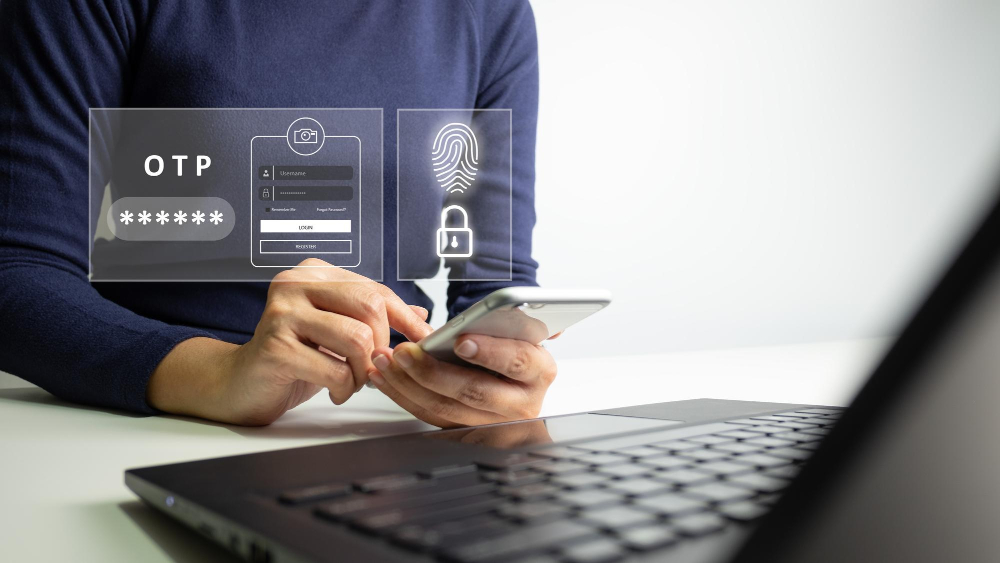
Two-factor authentication has gone from a security feature for paranoid technical users to a standard expectation for any account that matters. Banking, email, social media, business tools. The major services all offer it. The major security incidents almost universally would have been prevented by it.
For website owners, 2FA matters in two directions. Protecting your own admin access to the site. And offering 2FA to your users where their account security matters.
This piece covers what 2FA actually is, why it matters so much, how to enable it on your accounts, and how to add it to sites you run.
What Two-Factor Authentication Is
The concept is in the name. Two factors of authentication instead of one.
The Three Factors
Security professionals talk about three categories of authentication factors:
Something you know (passwords, PINs, security questions).
Something you have (a phone, a hardware key, a smart card).
Something you are (fingerprint, face, voice).
Single-factor authentication uses just one factor. Usually a password. Two-factor authentication uses two factors. Usually a password plus something you have.
Why Two Is Better Than One
A password alone can be:
Guessed if it is weak.
Stolen through phishing or keylogging.
Leaked in a data breach of another site.
Cracked from a stolen database.
If the password is the only thing protecting an account, any of these attacks succeed.
With 2FA, the attacker needs both the password and the second factor. Most attacks can capture passwords but cannot capture the second factor. The attack fails.
How 2FA Typically Works
You log in with username and password as usual. The site recognizes the credentials but does not log you in yet. It asks for the second factor.
The second factor is usually:
A code from an authenticator app on your phone.
A code sent via SMS.
A tap on a hardware key.
A confirmation prompt on an already-authenticated device.
After providing the second factor, you complete login.
What 2FA Stops
2FA blocks several common attack scenarios:
Brute force attacks on passwords stop being effective because guessing the password is not enough.
Credential stuffing (using passwords stolen from other sites) fails because the attacker does not have the second factor.
Phishing attacks that capture passwords cannot complete login.
Database breaches that expose passwords do not lead to account compromise.
For accounts that matter, 2FA is the single biggest security upgrade available.
Types of Two-Factor Authentication
Different 2FA methods have different security and convenience trade-offs.
Authenticator Apps
Apps like Google Authenticator, Authy, Microsoft Authenticator, or password managers with 2FA built in generate time-based codes.
When you set up 2FA, you scan a QR code that pairs the app with the account. From then on, the app generates 6-digit codes that change every 30 seconds.
To log in, you enter the current code from the app.
Authenticator apps are the recommended default for most users. They are secure, work offline, and do not depend on phone service.
SMS Codes
The site sends a code to your phone via SMS. You enter the code to complete login.
This is convenient because everyone has a phone capable of receiving SMS. But it is less secure than authenticator apps:
SMS can be intercepted in some attacks.
SIM swap attacks transfer the victim’s phone number to the attacker.
International SMS may be unreliable.
SMS is better than no 2FA, but authenticator apps are better than SMS.
Hardware Keys
Physical devices like YubiKey, Google Titan, or similar. The key plugs into a USB port or taps via NFC.
Hardware keys are the most secure 2FA method. They cannot be phished because they verify the actual website’s identity. They cannot be intercepted because the cryptographic communication happens directly with the device.
The trade-off is that you need to carry the device. Lose it, and you need backup methods to recover account access.
For high-security accounts, hardware keys are the strongest option.
Push Notifications
Apps from services like Duo or Authy can send push notifications when you try to log in. You confirm the login attempt on your phone.
The user experience is friendly. The security is comparable to authenticator apps.
Biometrics
Some services use biometric verification (fingerprint, face recognition) as a second factor. Usually combined with a device.
Apple’s Touch ID and Face ID, Windows Hello, and similar systems work this way.
Backup Codes
Every 2FA system should include backup codes. These are one-time codes you can use if you lose access to your second factor (phone lost, hardware key misplaced).
Print or save backup codes in a secure location. Use them when other methods fail. Each code can be used only once.
Why Many Users Skip 2FA
Despite the strong case for 2FA, many users do not enable it.
Perceived Friction
Adding a step to login feels inconvenient. Users avoid the setup.
The actual friction is small once 2FA is configured. Authenticator apps add a few seconds to login. The trade-off is huge improvement in security for minimal time cost.
Setup Complexity
Some users find the setup process confusing. QR codes, recovery codes, multiple methods.
The setup is one-time. Once done, it works. The complexity is in the initial setup, not the ongoing use.
Fear of Lockout
Users worry about losing access if they lose their phone or hardware key.
This concern is real but addressable. Backup codes solve the lockout problem. Multiple second factors provide redundancy.
Not Understanding the Risk
Without 2FA, accounts are protected by passwords alone. Many users do not realize how vulnerable this is.
How to Enable 2FA on Your Accounts
The process is similar across services.
Find the Security Settings
In your account settings, look for “Security,” “Two-Factor Authentication,” “2FA,” or similar. The exact name varies.
Choose Your Method
The service will offer one or more 2FA methods. Authenticator app is the recommended default. SMS is acceptable. Hardware key is best for high-value accounts.
Complete the Setup
Scan QR codes, enter codes, or pair devices as instructed. The setup is usually a few steps.
Save Backup Codes
The service will provide backup codes during setup. Save these somewhere safe. They are essential if you lose access to your primary 2FA method.
Test the Setup
Log out and log back in. Confirm 2FA works as expected. If something is wrong, fix it before relying on the setup.
Repeat for Important Accounts
Email accounts are the highest priority because they control password resets for everything else. Then financial accounts. Then social media. Then business accounts.
Work through the list. After a few sessions, all your important accounts have 2FA.
Setting Up 2FA on Your Website
If you run a website with user accounts, offering 2FA matters.
For WordPress Sites
Several plugins handle 2FA for WordPress:
Wordfence includes 2FA in the free version.
iThemes Security adds 2FA functionality.
Two Factor is a focused 2FA plugin.
Google Authenticator (the plugin, not the app) provides Google Authenticator support.
Pick one and configure it. The setup typically takes minutes for the site. Users can then opt into 2FA on their accounts.
For Other Platforms
Most major CMS platforms have 2FA plugins or built-in support.
Drupal has 2FA modules.
Joomla has extensions for 2FA.
Most SaaS platforms include 2FA as a standard feature.
Check your platform’s documentation for current options.
For Custom Sites
If you have built custom authentication, adding 2FA requires development work. Several libraries help:
For PHP, the RobThree/TwoFactorAuth library is popular.
For Node.js, speakeasy and otplib are common.
For other languages, similar libraries exist.
The implementation should follow the TOTP standard (RFC 6238) so users can use any compatible authenticator app.
Should You Require or Encourage?
You can require 2FA for all users or just encourage it.
Requiring is stronger but creates friction. Some users will leave rather than enable 2FA.
Encouraging gives users the choice. Many will enable it. Some will not.
For most consumer sites, encouraging is the right balance. For business and enterprise sites, requiring may be appropriate.
For sensitive operations (changing email, deleting account, transferring funds), requiring 2FA even when not used at login is a strong practice.
Common 2FA Mistakes
People stumble in predictable ways.
Only Using SMS
SMS 2FA is better than nothing but worse than alternatives. For accounts that matter, use authenticator apps or hardware keys.
Not Saving Backup Codes
Users who lose access to their second factor without backup codes lose access to their account. Always save backup codes during setup.
Using the Same 2FA App Across Devices
Some users use one authenticator app on one phone. If the phone is lost or breaks, all accounts become inaccessible until restored from backup.
Apps like Authy and 1Password sync 2FA across devices, providing redundancy.
Storing 2FA Codes With Passwords
If your password manager stores both passwords and 2FA codes, compromising the password manager compromises both. This violates the “two factor” concept.
Some users keep 2FA separate (different device or app). Others accept the convenience trade-off. The right choice depends on your risk tolerance.
Skipping 2FA for “Less Important” Accounts
Many accounts have access to more than the obvious value. Email accounts can reset other passwords. Social media accounts can be used for impersonation. Even seemingly minor accounts often deserve 2FA.
Trusting “Remember This Device”
Most 2FA systems offer to skip 2FA on devices you mark as trusted. This is convenient but creates risk if the device is stolen. Use trusted devices sparingly.
Closing Thoughts on Adding Authentication Layers
Two-factor authentication is one of the highest-impact security measures available. The protection against common attacks is dramatic. The implementation is mature. The user experience cost is small.
For personal accounts, enabling 2FA on every account that supports it is the right baseline. Email first (because of password resets), then financial accounts, then everything else. The work is one-time per account. The protection lasts forever.
For website owners, offering 2FA to your users protects them and your reputation. Sites where users have valuable data should at minimum offer 2FA. High-value sites should require it.
For business and enterprise environments, 2FA should be standard for all internal tools. The cost of a breach far exceeds the cost of implementation.
The shift from optional to standard for 2FA has been gradual but unmistakable. Major services have made 2FA easy to enable. Authenticator apps are free and universally available. The friction has dropped to near zero.
If you have accounts that matter and you have not enabled 2FA on them, today is the day to fix that. The setup takes minutes per account. The protection compounds for years. Sites and services that lose accounts to attacks that 2FA would have prevented are common. The lessons usually are learned the hard way. The lesson is available without the hard way: enable 2FA before you need it, not after. The work is small. The protection is large. The decision to invest in 2FA is the most important security decision after using strong passwords. Once made, the implementation follows easily.