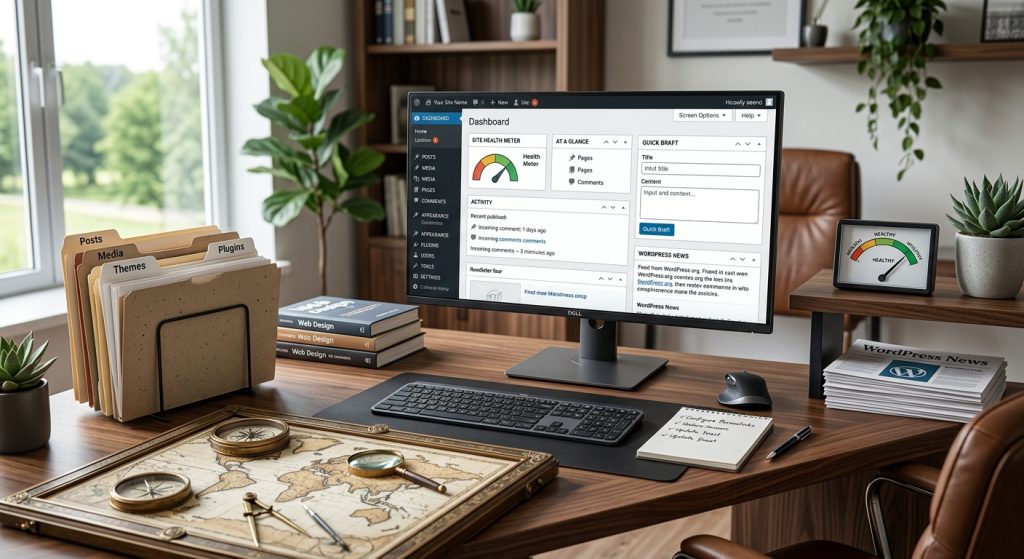
The WordPress admin dashboard is where you spend most of your time managing your site. For new users, it can feel overwhelming. The menu has many items. Each item has multiple options. Nothing is labeled obviously if you do not already know what to look for.
The good news is that once you understand the structure, everything makes sense. This piece walks through the WordPress dashboard, explaining what each section does and when you would use it. After this, the admin area becomes a familiar place rather than a confusing one.
The Overall Layout
WordPress admin follows a consistent structure.
The Left Sidebar
The main navigation lives on the left side of the screen. Each menu item leads to a specific area. The sidebar stays visible as you move around the admin.
The Top Toolbar
A horizontal toolbar sits at the top. It shows your site name, notifications, and links to view your site as a visitor would see it.
The Main Content Area
The center of the screen shows whatever you are currently working on. The dashboard home, the post editor, plugin settings, whatever the current task is.
Screen Options
Most admin screens have a “Screen Options” tab in the upper right. It lets you customize what appears on that screen. Useful for tailoring the interface to your needs.
The Dashboard Home
The first thing you see after logging in.
At a Glance
Shows a summary of your site. How many posts, pages, and comments you have. Which theme is active. Which WordPress version you are running.
Activity
Recent activity on your site. Recently published posts, upcoming scheduled posts, recent comments awaiting moderation.
Quick Draft
A simple form for quickly writing a new post. Not the main editor but useful for capturing ideas.
WordPress Events & News
Information about the WordPress community, upcoming events, and recent news from WordPress.org.
Additional Widgets
Plugins can add their own widgets to the dashboard. Sometimes useful, sometimes cluttered. Screen Options lets you hide widgets you do not want to see.
Posts
Where blog posts and similar content live.
All Posts
Lists every post on your site. You can sort, filter, and search. This is where you go to edit existing posts or see what has been published.
Add New
Opens the editor to write a new post. This is the most common way to create content.
Categories
Manage the categories used to organize posts. Add new categories, edit existing ones, or delete categories that are no longer needed.
Tags
Manage tags similarly to categories. Tags are more specific than categories and typically more numerous.
Media
The library of images, videos, and other files.
Library
Shows all media files uploaded to your site. You can search, filter, and edit files.
Add New
Upload new files directly. Files can also be uploaded from within the post editor when you are creating content.
Media Details
Clicking any file opens its details. You can edit the title, alt text, caption, and description. For images, you can also do basic editing like cropping and resizing.
Pages
Similar to posts but for static content.
All Pages
Lists all pages on your site. Home, About, Contact, and any others you have created.
Add New
Opens the editor to create a new page.
The distinction between pages and posts matters. Pages are for permanent content. Posts are for time-based content.
Comments
If your site allows comments, this is where you manage them.
Comment List
Shows all comments on your site. You can approve, reply, edit, or delete comments.
Comment Statuses
Comments can be pending (waiting for moderation), approved, spam, or trash. The comment settings under Settings > Discussion control how comments are handled.
Appearance
Controls how your site looks.
Themes
Where you install, activate, and manage themes. The active theme controls your site’s appearance. You can preview and switch themes here.
Customize
The Customizer lets you modify theme settings visually. Colors, fonts, layouts, and other options depending on the theme. Some themes rely heavily on the Customizer. Others use different systems.
Widgets
If your theme uses the classic widget system, this is where you manage widgets that appear in sidebars, footers, and other widget areas. Newer WordPress relies more on the Block Editor for these areas.
Menus
Create and manage navigation menus. You add pages, categories, custom links, and other items to menus. Then assign menus to locations defined by your theme (usually a primary navigation menu and a footer menu).
Header & Background
Some themes provide options to customize the header image and background. These options appear if the theme supports them.
Theme Editor
Provides direct editing of theme files. Do not use this unless you know what you are doing. Editing themes directly is risky.
Plugins
Where you manage the functionality added to your site.
Installed Plugins
Lists all plugins on your site. Shows which are active and which are inactive. You can activate, deactivate, update, or delete plugins here.
Add New
Search and install new plugins from the WordPress plugin directory. You can also upload plugin files from your computer.
Plugin Editor
Direct editing of plugin files. Like the theme editor, use with caution.
Users
Manage who has access to your site.
All Users
Lists everyone with an account on your site. You can view details, edit accounts, or delete users.
Add New
Create new user accounts. You assign a role during creation. An earlier piece in this series covered user permissions.
Profile
Your own profile settings. Display name, email, biographical info, password, and other personal settings.
Tools
Various utilities.
Import
Bring content into WordPress from other systems. Different importers handle different sources.
Export
Export your content to a file. Useful for moving to another site or as a supplemental backup.
Site Health
WordPress checks your site for potential issues and shows recommendations. Performance issues, security concerns, and other findings.
Export Personal Data & Erase Personal Data
Tools for GDPR compliance. Users can request their data or request that their data be erased.
Settings
Site-wide configuration options. The next piece in this series covers these in detail.
General
Site title, tagline, URL, admin email, time zone, date and time format.
Writing
Default post category, default post format, remote publishing options.
Reading
What appears on the front page. How many posts per page. Search engine visibility.
Discussion
How comments work. Notification preferences. Moderation settings.
Media
Default image sizes. How files are organized.
Permalinks
The URL structure for posts. This affects SEO and user experience.
Privacy
Privacy policy settings for GDPR and similar compliance.
Plugin-Added Menu Items
Beyond the default menus, plugins often add their own menu items.
Where They Appear
Some plugins add top-level menu items in the main sidebar. Others add themselves under Settings or Tools. Some add their own dedicated sections.
The location depends on how the plugin developer chose to organize things.
How to Find Plugin Settings
If you install a plugin and cannot find its settings, check the main sidebar first. Then check under Settings. Then check under Tools. Then look in the plugin’s own menu section if it has one.
Customizing the Admin Experience
The admin can be adjusted to your needs.
Screen Options
Most screens let you hide or show columns and sections. Useful for reducing clutter.
Admin Color Scheme
Under your profile, you can change the color scheme of the admin area. Purely cosmetic but some people find specific colors more comfortable.
Keyboard Shortcuts
WordPress supports keyboard shortcuts, especially in the Block Editor. Learning them speeds up work.
Admin Menu Editor Plugins
For sites with many plugins, the admin sidebar can get cluttered. Plugins like Admin Menu Editor let you customize what appears.
What to Focus On As a Beginner
New users benefit from focusing on the essentials.
The Editor
You will spend most of your time in the post and page editors. Learning the Block Editor well pays off across all your content work.
Media Library
Managing images and files well affects site organization and performance.
Menus
Setting up navigation properly makes the site usable for visitors.
Settings Under General, Reading, & Permalinks
These affect fundamental site behavior. Get them right early.
Plugin Management
Adding, updating, and removing plugins is ongoing work. Understanding the process matters.
Common Beginner Confusion Points
New users often struggle with specific things.
Pages vs Posts
The distinction confuses many beginners. Pages for permanent content (About, Contact). Posts for dated content (blog entries).
Categories vs Tags
Both organize content but differently. Categories are broad and few. Tags are specific and many. Use both, but do not overuse either.
Where Plugin Settings Live
Plugin settings appear in different places depending on the plugin. Search rather than assume a specific location.
Media Library vs Uploading in Editor
You can upload media from the Media Library or directly in the editor. Both work. Editor uploads are convenient during content creation. Library management helps when organizing lots of media.
The Difference Between Themes & Templates
Themes control site appearance overall. Templates within a theme control specific page layouts. Users sometimes confuse these.
Bringing the Dashboard Together
The WordPress dashboard becomes familiar with use. The initial complexity gives way to muscle memory. Common tasks stop requiring thought.
For new users, the right approach is to explore rather than avoid. Click around. See what each section does. The exploration builds familiarity.
Focus on the sections you use most. For content creators, that means the editor, media library, and menus. For site managers, that means users, plugins, and settings. For site owners, that means most sections at various times.
Do not memorize every menu item. Learn the sections you use regularly. Look up others when you need them. Over time, you will know most of the admin by heart.
If you have been using WordPress but feel unsure about parts of the admin, taking time to explore is worthwhile. The exploration produces familiarity that makes all future WordPress work faster. The admin area that felt overwhelming becomes a productive workspace.
For most WordPress users, the admin is where the work happens. Learning it well pays back through every future task. The investment is bounded. The benefit compounds across the life of your site. Take the time to become comfortable with the admin, and using WordPress becomes much easier over time.